Login & Sign Up
When you arrive on the front page of our website, you can log in by clicking the Login link in the upper right corner of the top nav bar which will trigger the following pop-up:
If you have not created a profile, please click Sign Up. Forgot your password? click Reset.
Profile Dropdown Menu
Once you are logged in, the navigation bar will appear as below.
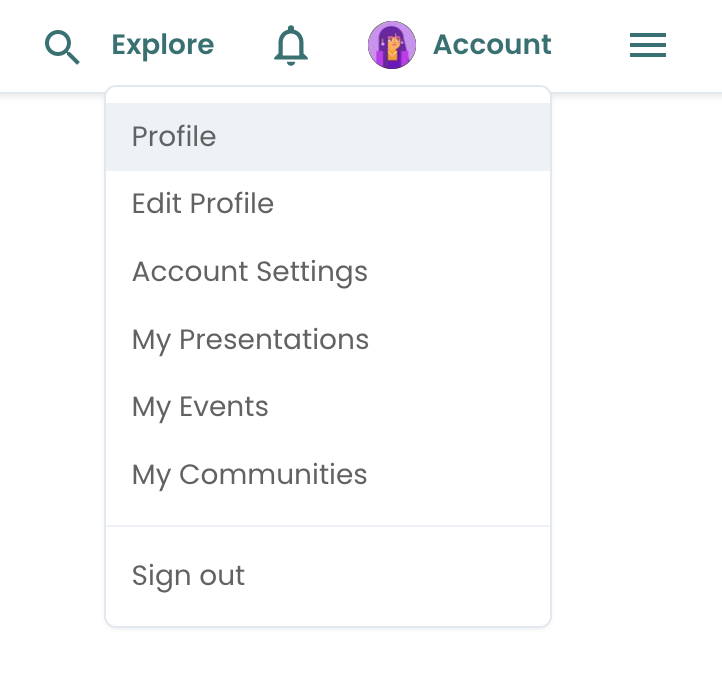
Clicking on your profile icon in the upper righthand corner will reveal the following submenu:
In the following sections of this walkthrough, we will explain the available subsections in the dropdown menu in further detail.
Profile
Selecting Profile will bring you to your profile page where can you view what your profile looks like to other members. If you have ever presented at or hosted a PechaKucha Event or created content, your related events and presentations will be shown beneath your Account Settings and Edit Profile buttons. If you do not have any content your Profile page will appear as below.
Note We urge you all to fill in as much profile information as possible, to make it easy for people to reach you.
Edit Profile
Need to edit your profile details? You can now change your Name, Pronouns, Bio, Job Title or Nickname, and add social links for Twitter, Facebook, Instagram, LinkedIn, Medium, and Linktree accounts on this page. Please be sure to click Save before navigating away from the page.

Account Settings
By clicking Account Settings, it will lead you to the following page where you can manage your PechaKucha Membership (Membership Type), Followers, Followed Interests, Presentations, Events, Communities and Subscriptions, stored Images, Email, Password, and Notification Preferences.

Membership Type
Our two existing
Membership Types are
Basic (Free) or
PK Pro. Having PK Pro will give you access to the
Earning History and Payout Settings (Stripe) and
Payment History sections as you will be able to generate community, event, and content revenue as a
PK Pro member. To learn more about our PK Pro membership, check out our
pricing page.
Manage Followers
Clicking Manage Followers will allow you to manage who you follow as well as view who follows you.
Manage Followed Interests
Click Manage Followed Interests to edit the content topics you are interested in. Be sure to flesh out your followed interests to further customize your homepage feed.
Manage Presentations, Manage Events, Manage Communities and Subscriptions
Manage Images
Need to save images for upcoming events? Upload images here for later use.
Notification Preferences
Want to be notified when you are invited to a community or event? Make sure this option is switched on.
My Presentations
On your My Presentations page, you can view your Published content, edit Drafts, duplicate, publish/unpublish, delete, share and view Liked and Saved presentations - all in one place!

If you are having trouble publishing/editing your presentations, please read our article on creating presentations
here.
My Events
Your My Events page is home to the list of events you manage or are attending. Want to create a new event? You can also create a new event on this page.

For more information on Creating Events and Going Live, please visit our help article on the topic here.
My Communities
Your My Communities page is home to the list of communities you manage or are a member of. Want to create a new community? You can also create a new community on this page.

For more information on Communities, please visit our help article on the topic here.
If you have any further questions or concerns, please submit a request here.




Comments
0 comments
Article is closed for comments.