PechaKucha is all about creating, so why not share your creativity with the global community? Get your presentations online, and show the world what you have to offer!
Looking for a quick, informative video? Watch our How-to video on creating presentations by our very own "Global Dude" Brian Scott Peterson linked below!
This article contains the following sections:
Slide File Type
JPEG, PNG
Recommended Image Ratio
16:9
Current Maximum Image Size
3000px Width, 1300px Height
Audio File Type
WAV, MP3, FLAC (MP3 recommended)
Recommended Image Size
1920x1080
Recommended Audio Length
6 minutes & 40 seconds (20x20), 3 minutes & 20 seconds(10x20), 1 minute & 40 seconds (10x10), 25 seconds (5x5), 20 seconds (1x20)
Getting Started
As there are a few ways to upload presentations to
PechaKucha.com, please choose either option below to continue.
A Navigation Bar
To create a presentation, (while logged in) click the Create tab on the navigation bar then, select Create Presentation.
B My Presentations
From your
My Presentations page (located in your
Account Dropdown Menu),
click Create New Presentation to start creating.
Select Presentation Format
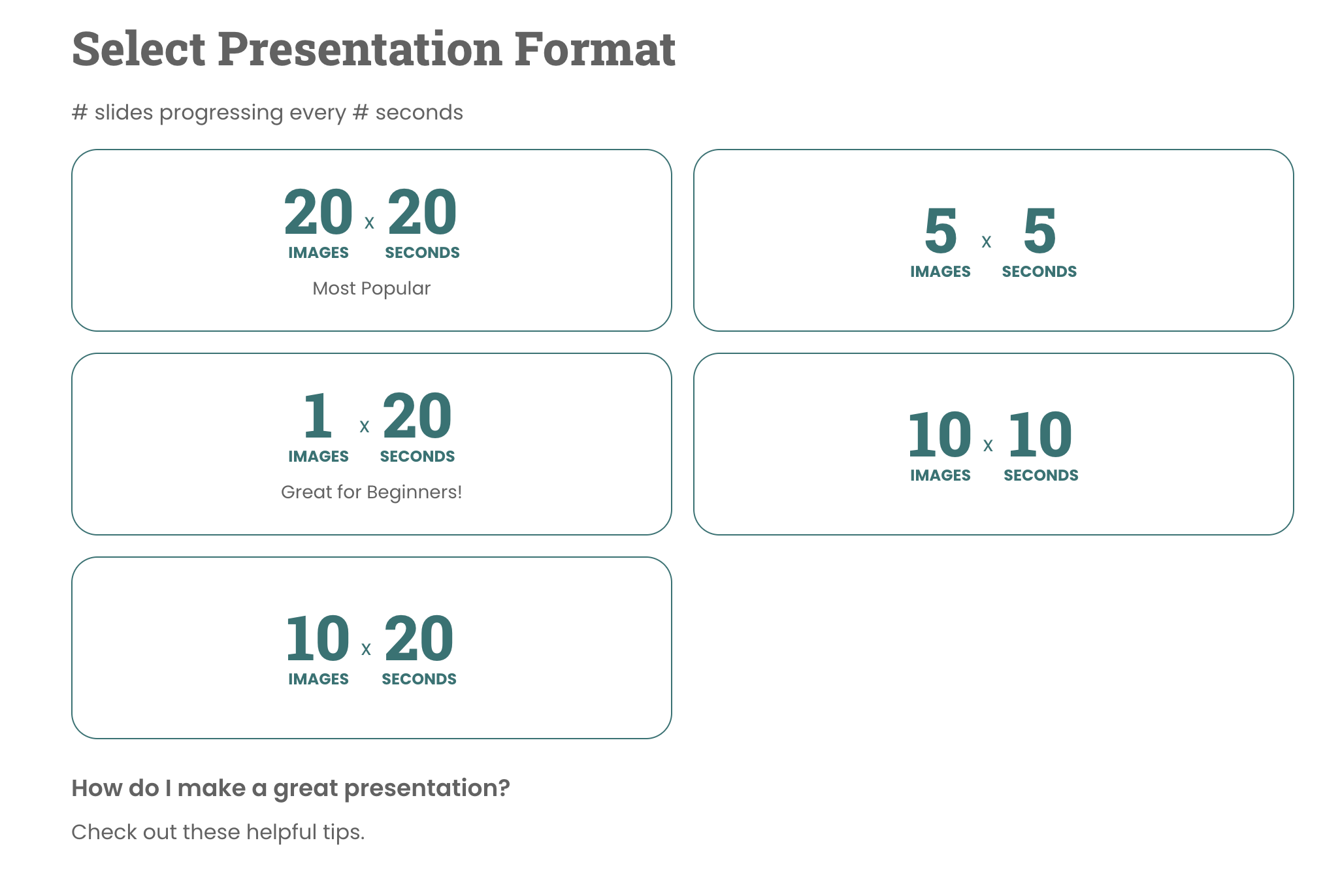
Once you have clicked Create Presentation/Create New Presentation, you will be taken to the Select Presentation Format page. Please select from one of our available formats to start building your presentation.
Note Once you have selected your format type, you cannot change your selection once you have saved your progress.
Images
Next, please upload your images (.jpg or .png) by clicking the Upload Images button.

Note The number of images you need to upload depends on what format you've selected. In this example, I have chosen the 5x5 format.
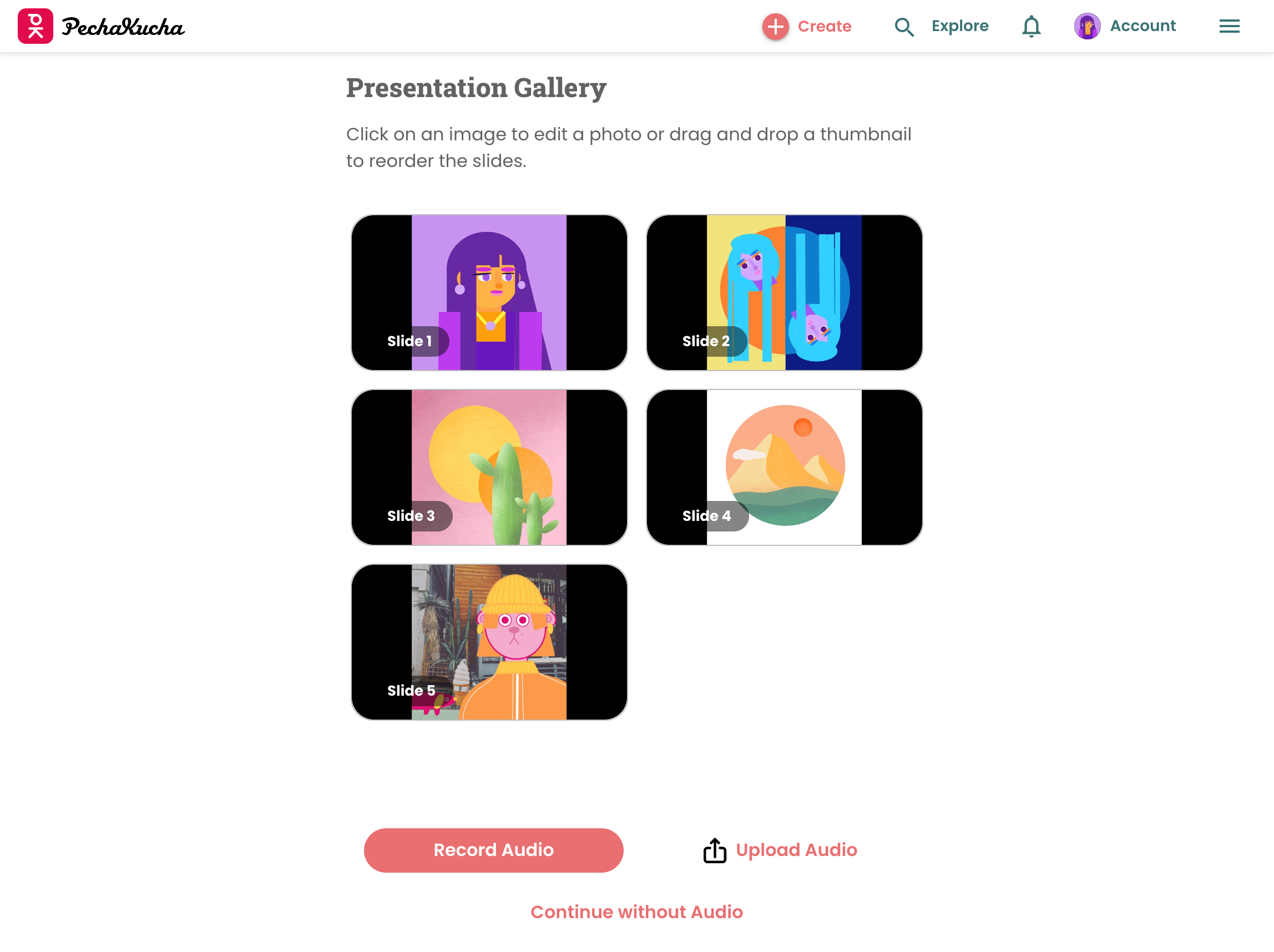
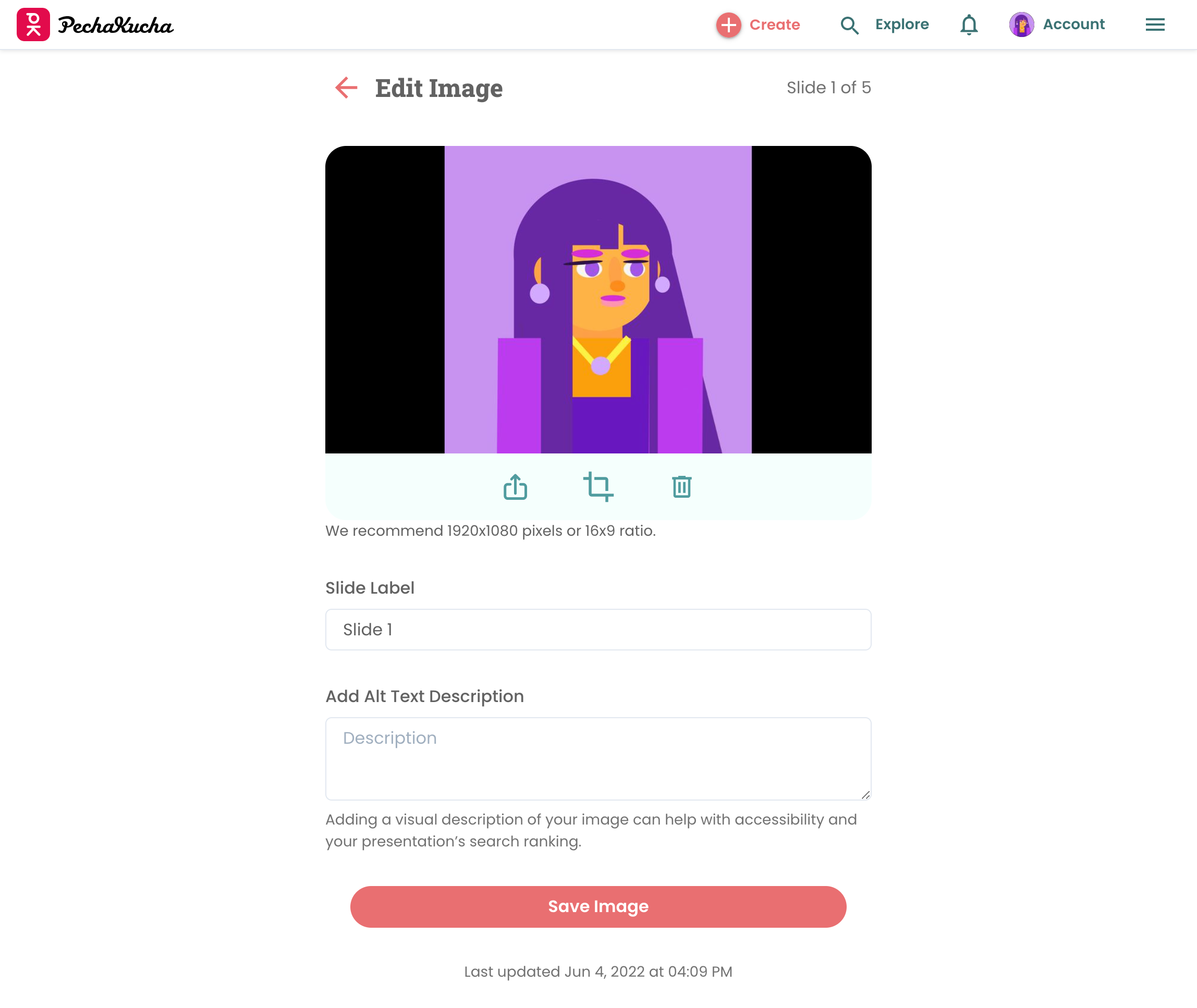
On the next page, you will have the ability to edit or reorder your images. To edit your images, simply click on the image to open the editing options. Here you can Replace, Crop, or Delete the image as well as create a Slide Label and Add an Alt Text Description. To save your changes, click Save Image.
To continue onto the Audio page, please select one of the following options: Record Audio, Upload Audio, or Continue without Audio.
Audio
Now that you have uploaded your images, it's time to upload/record your audio.
Record Audio
If you have selected Record Audio, you will be taken to the page below. Be sure to click Record when you are ready to go.
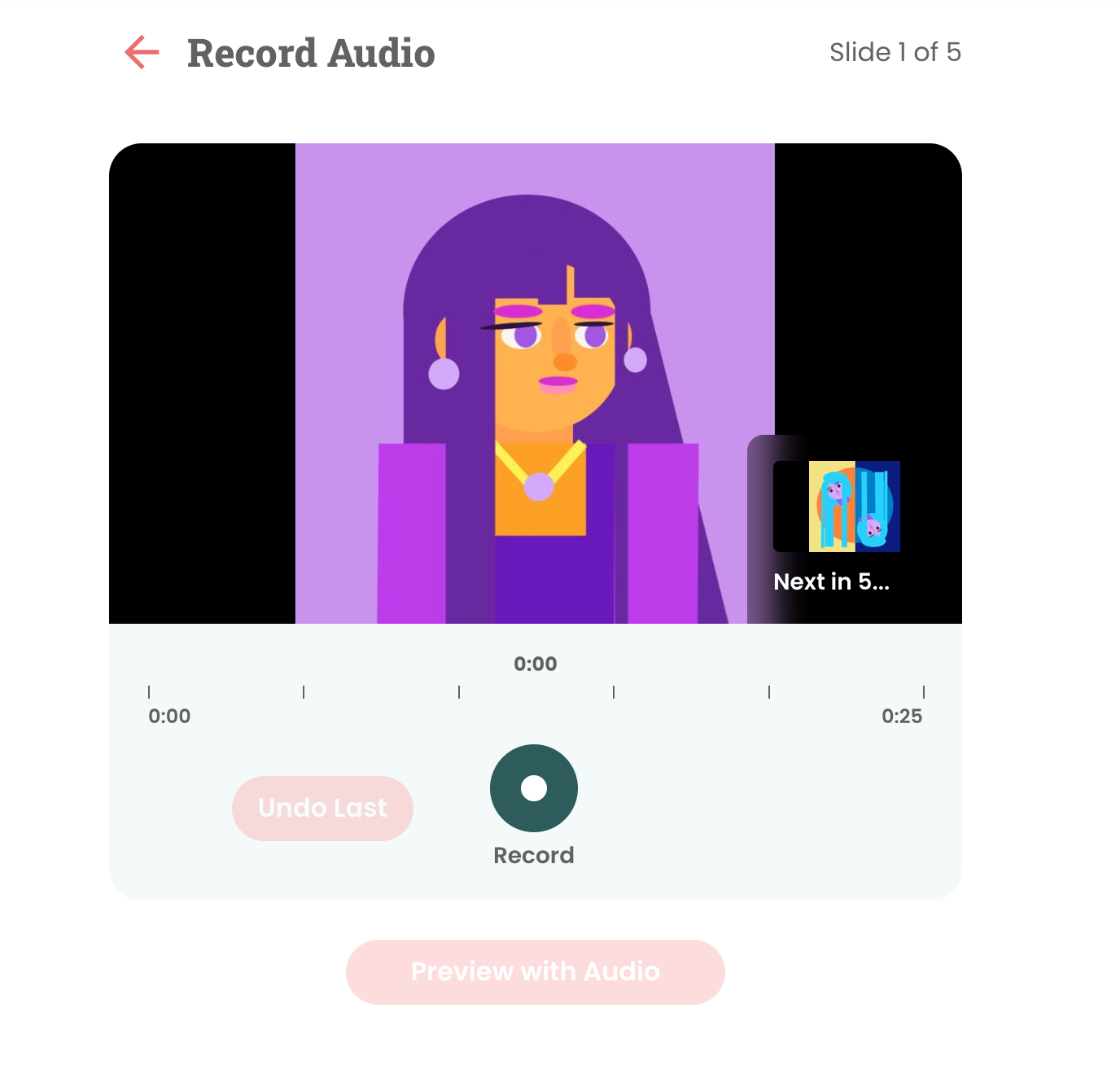
Once you have completed your recording, you will be able to Preview your presentation with your recorded audio. If you are satisfied with your progress, click Save Audio and Continue to move onto the Presentation Details page.
Upload Audio
If you have selected Upload Audio, please upload your MP3 (M4a, MP4 file types are not accepted). Once the file has been successfully uploaded, you will be taken to the Presentation Details page.
Note If you are uploading your audio, please refrain from using symbols, punctuation marks, or accented letters in your audio file name. Also, if your audio is in any other format than MP3, you can convert the file using the following website:
https://cloudconvert.org
If you have presented at a live event and have extra time at the beginning or end of your presentation, you can adjust the time settings while uploading your audio.
Continue without Audio
If you have selected Continue without Audio, the following pop-up will appear.
If you agree with these terms, please click Continue Without Audio.
After completing one of the options above, you will be taken to the final step, the Presentation Details page.
Presentation Details
In the Presentation Details section, you can select your Thumbnail Image, Presentation Name, Presentation URL Fragment (URL title), Description, Category, Sub-Category, Tags, and Privacy Settings (Who can view this presentation? (Visibility) and Manage Owners and Presenters).You can also choose whether you Allow Comments on your public presentation page.
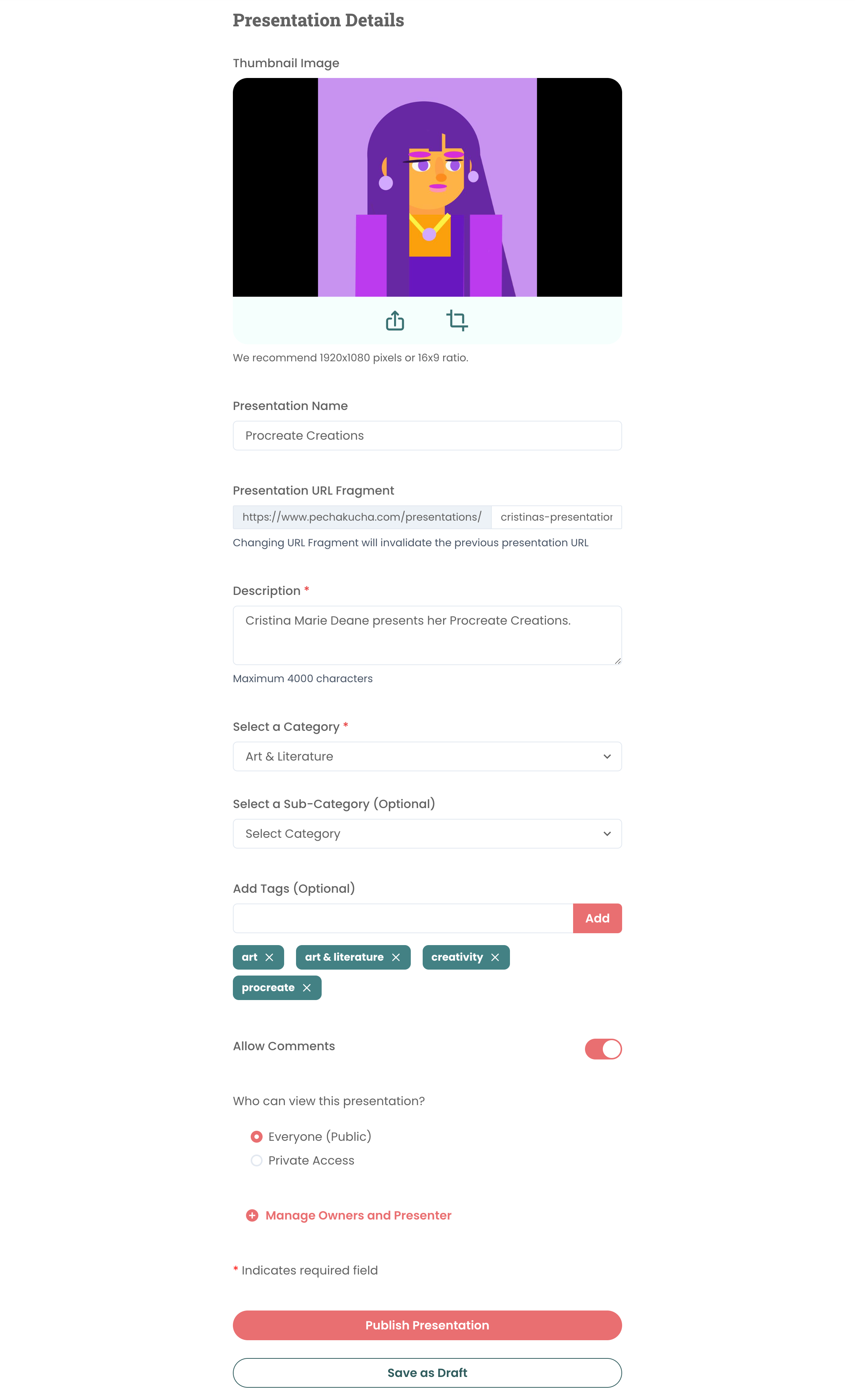
If you would like to make your presentation Private, please select Private Access.
Manage Access and Visibility Pop-up Menu
Need to update who can access your presentation for editing purposes? Select the Manage Access and Visibility pop-up menu to add collaborators to your presentation.
Quick Navigation
My Presentations>
Presentation Edit Dropdown Menu>
Edit Details>
Manage Owners and Presenter
First, search for users using their name or email address in the query field as seen below. Once you have found who you are looking for, click Invite to grant access.
If you are ready to publish your presentation, click Publish Presentation. If you'd like to complete your presentation at a later time, select Save as Draft.
My Presentations Page
Once you have submitted your presentation, you will be automatically taken to your
My Presentations page.
On your My Presentations page, you can view your Published and Drafted presentations as well as your Liked and Saved presentations.
Presentation Submenu
By clicking on the three vertical dots in the corner of your presentation, you can access features to Publish/Unpublish your presentation, edit your presentation details (Edit Details), and edit your slides/audio (Edit Presentation).
If you would like to download your presentation as an
MP4,
MP3,
ZIP or
PPTX file, please upgrade to our
PK Pro Membership. For more information on pricing, click
here.
For Published Content
If you'd like to share your presentation with others, you have the ability share your content by clicking the submenu and selecting Share.
You can share your presentation by Copying the Link, or sharing it directly to Twitter, Facebook, or LinkedIn.
If you have any questions or concerns regarding Creating Presentations, please contact us by submitting a request form here.
Related Search Terms
- Video upload
- Presentation
- Image dimension
- Slide dimension
- Images




Comments
1 comment
Hi! How can I enable another user to edit my drafted video?
Article is closed for comments.